
Workspace guides
Chat
Talk to your AI workforce: ask questions across every module, trigger actions, and watch the tools run live.
Watch: Chat in 90 seconds
What it does
Chat is the command line for the whole platform. Ask for your pipeline, overdue invoices, open tickets or this morning's brief — the assistant runs real tools against your data and streams the answer back, showing each tool call as it happens.
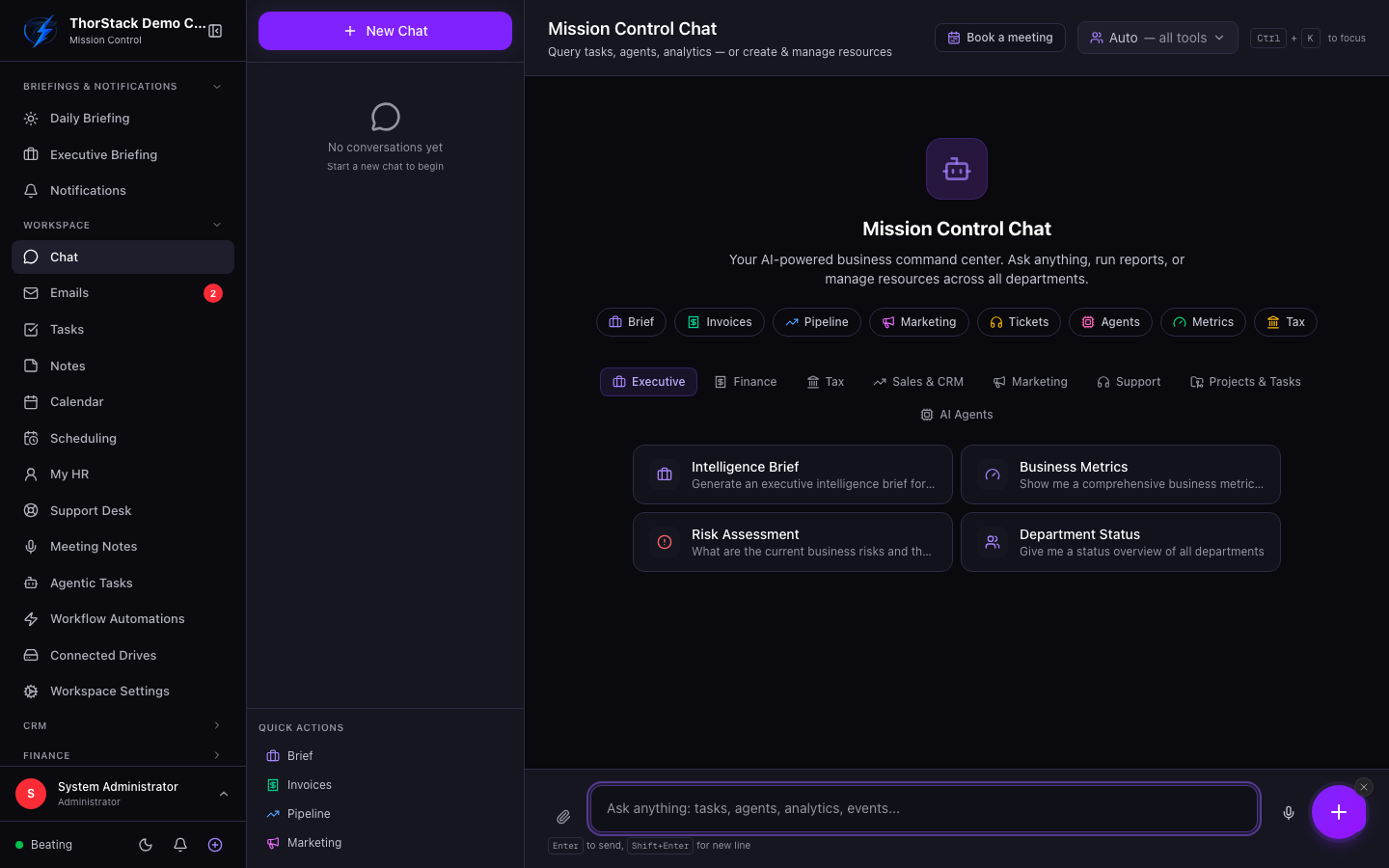 Chat with quick actions
Key concepts
- Sessions — conversations persist in the left sidebar, grouped by date. Rename or delete them inline; each session's URL is shareable within the workspace.
- Quick actions — the empty state offers one-click prompts (Brief, Invoices, Pipeline, Tickets…) organised into category tabs from Executive to AI Agents. You only see actions your role can access.
- Agent selector — point a session at a specific agent to scope its tools and personality.
- Context — attach files, URLs or CRM records with the paperclip so answers are grounded in a specific document or account.
Working in chat
- Click New Chat (or press Ctrl+K to focus the composer from anywhere).
- Type a request — or tap the mic for voice input, which auto-sends when you stop speaking.
- When the assistant wants to do something outbound (send an email, post a message), it asks first; confirm or cancel in one click.
Settings & permissions
Every quick action is gated by module permissions (for example module:finance:r for the Invoices action) — users only see what they can already access. Tool-call detail view is admin-only.
Related
- AI workforce — the agents behind the answers.
- Scheduling — the Book a meeting button in the header uses your booking setup.