
Workspace Settings
Connect Google, Microsoft 365, Dropbox and Zoho; tune email and calendar sync; control CRM auto-creation and signatures.
Watch: Workspace Settings in 90 seconds
What it does
Workspace Settings → Connections is where the workspace meets your other tools. Connect accounts once and every feature that needs them — Emails, Calendar, Drives, Scheduling, Meeting Notes — lights up together.
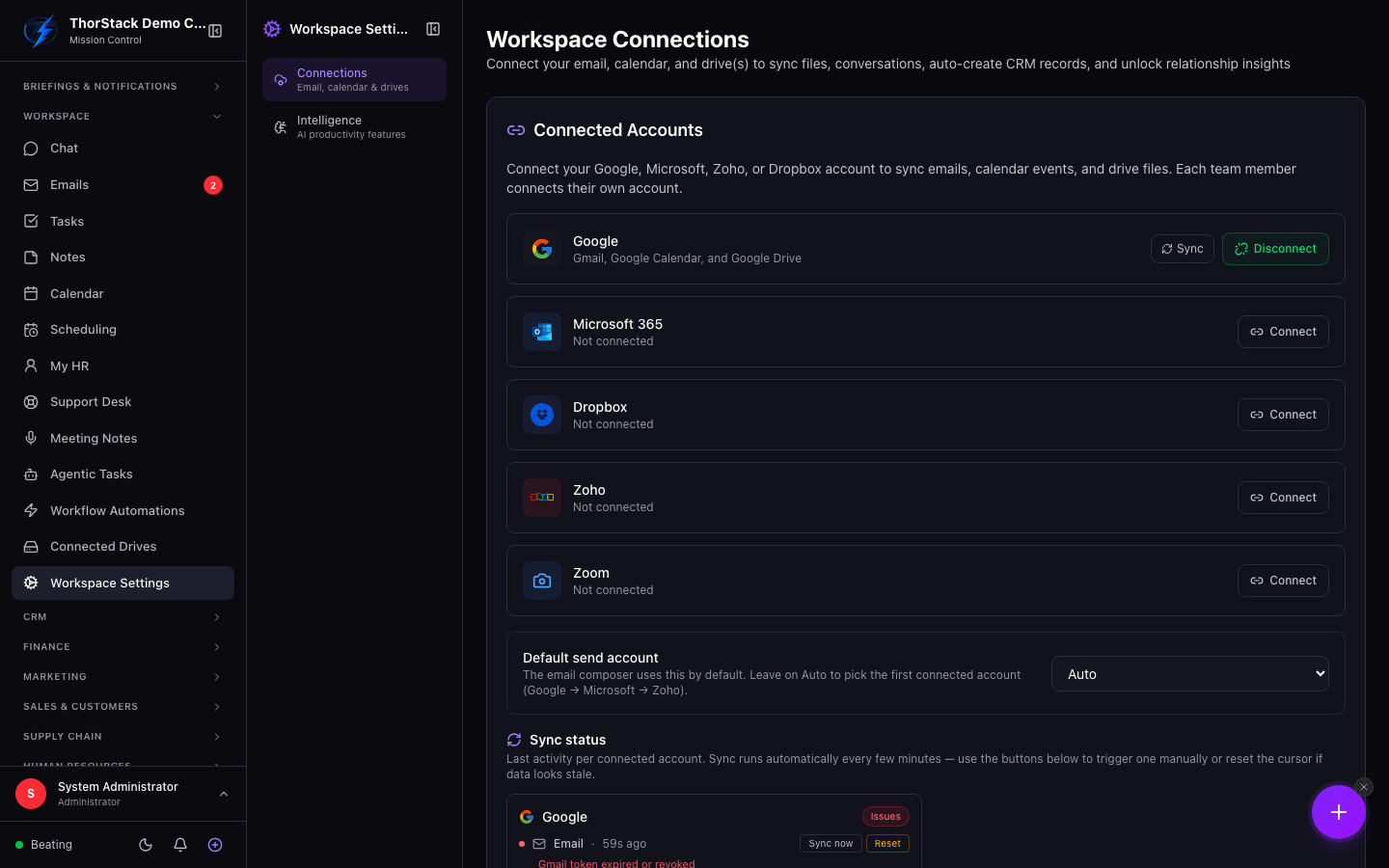 Workspace connections
The provider cards
Google (Gmail + Calendar + Drive), Microsoft 365 (Outlook + Calendar + OneDrive), Dropbox, Zoho (Mail + Calendar) and Zoom (meeting links for Scheduling only). Each card shows connection status; Connect starts the OAuth flow, and connected providers gain per-service sync rows with health dots, last-sync times and two buttons:
- Sync now — run an incremental sync immediately.
- Reset — clear the sync cursor and re-pull the whole lookback window (the fix for stale or missing items).
Sync behaviour worth knowing
| Setting | What it controls |
|---|---|
| Sync sent / received emails | Direction toggles for mail sync. |
| Initial sync lookback | 7–365 days of history pulled on first sync. |
| Record creation | Whether email participants auto-create CRM contacts: All, Selective (default — only people you've replied to), or None. |
| Company records | Optionally auto-create company records from contact domains. |
| Default send account | Which mailbox the composer uses when several are connected. |
Email signatures
Create rich-text signatures with + New Signature, star one as default, and it's appended to outgoing mail automatically.
A sticky bar tracks unsaved changes across sections — Save Changes or Discard before you leave.
Settings & permissions
The page requires module:workspace_connections:rw; users without it hit an access guard. Each user authorises their own provider accounts — there are no shared master credentials.
Related
- Emails, Calendar, Connected Drives — all powered by these connections.
- Data residency — where synced data lives.