
Workspace guides
Notes
A shared, folder-organised notebook with templates, favourites, and one-click publishing to your blog or LinkedIn.
Watch: Notes in 90 seconds
What it does
Notes is the team's shared notebook. Every note supports rich text, lives in a folder tree you control, and can be tagged to CRM records — a contact, company or deal — so context stays attached to the account it belongs to.
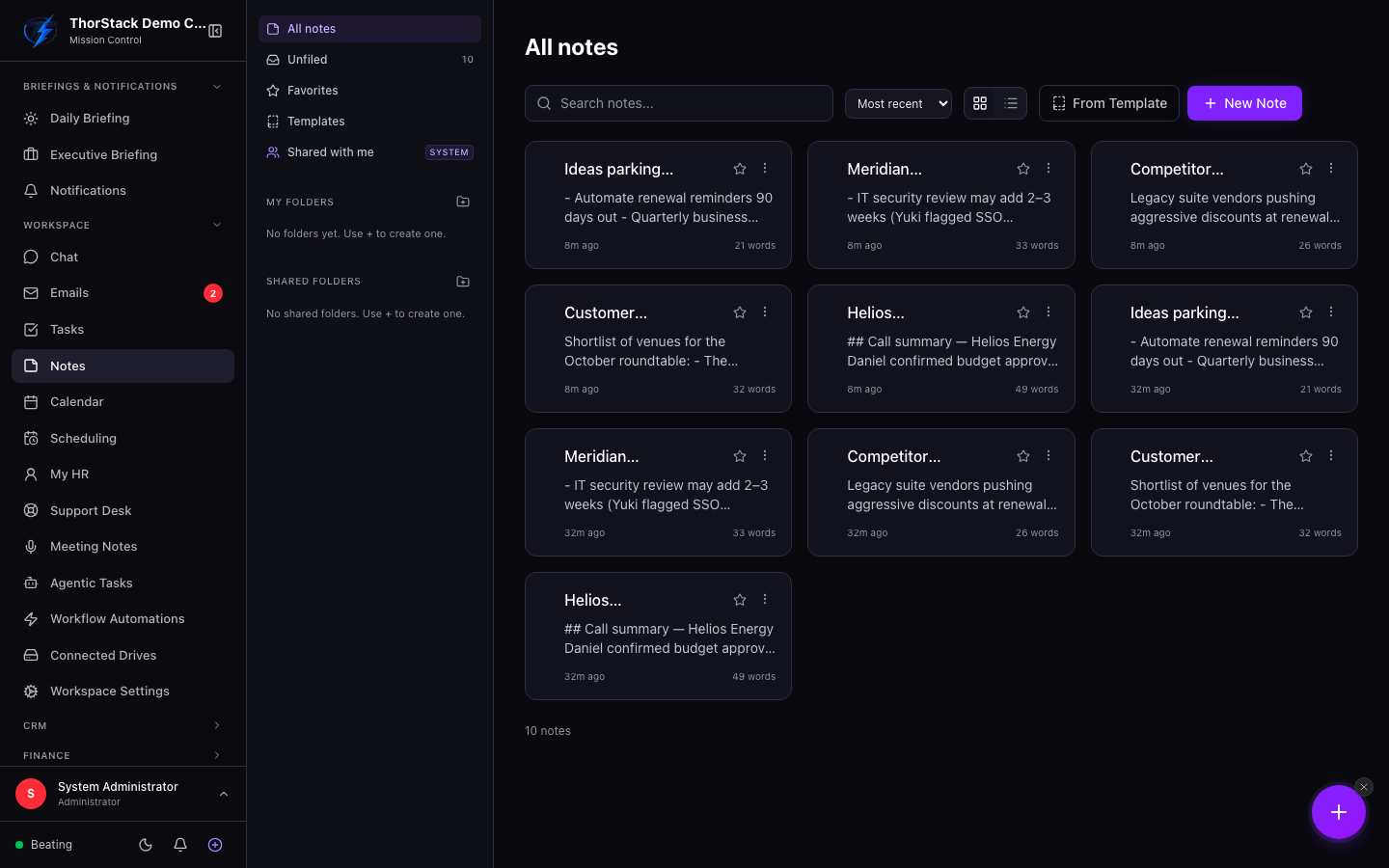 The Notes library
Key concepts
- Folders — organise notes into nested folders; drag a note onto a folder in the sidebar to move it. Unfiled holds everything without a home.
- Favourites — star a note to pin it to the Favourites view.
- Templates — save any note as a template, then start new notes From Template.
- Shared with me — notes teammates have shared with you (read-only unless they grant more).
Create and organise
- Open Notes and click New Note — you land straight in the editor.
- Back in the library, switch between the card grid and the table view, sort by recency or name, and search across titles, bodies and tags.
- Select multiple notes to bulk Move to folder…, Share with team… or Delete.
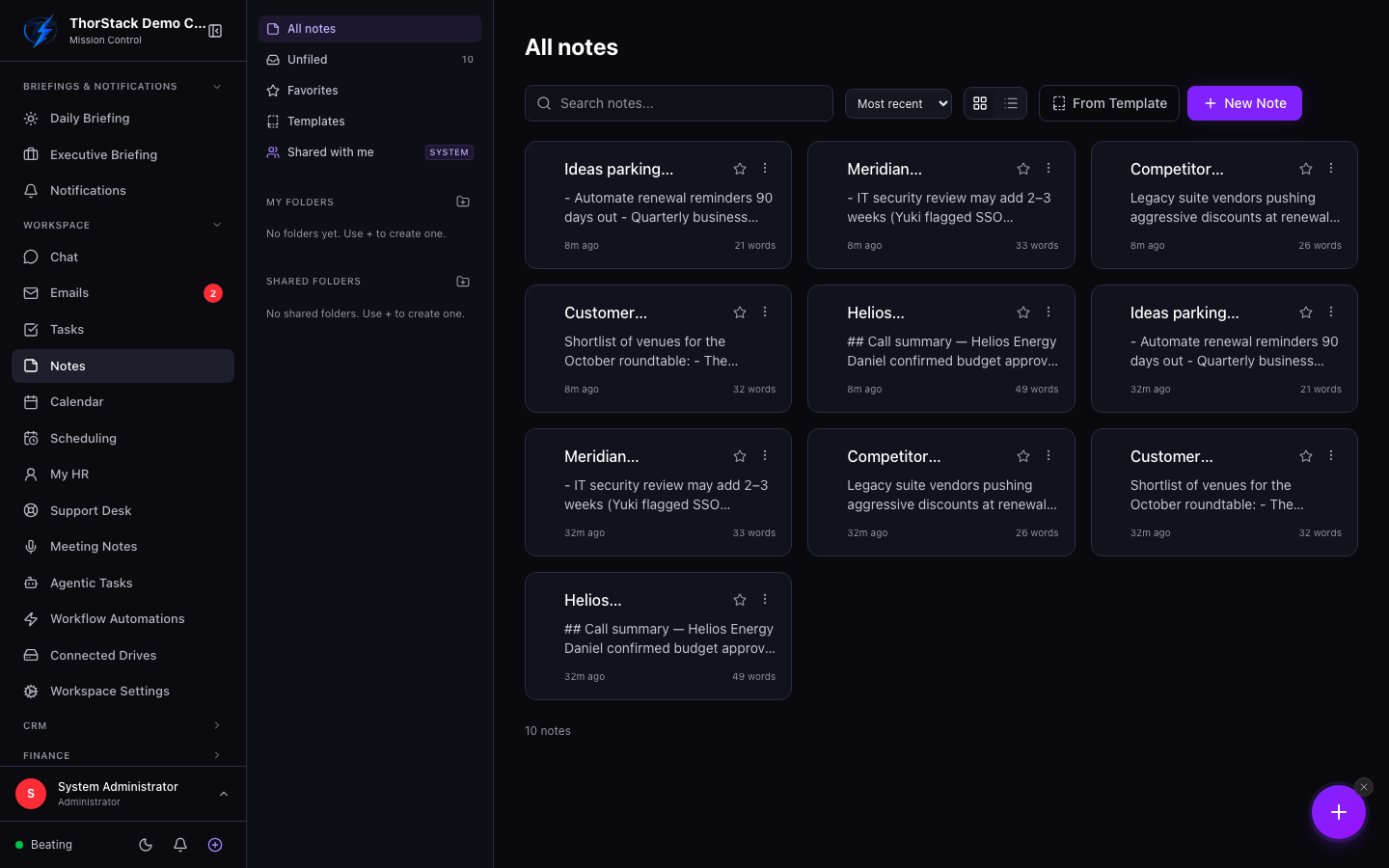 Cards, folders and search
Publish, don't copy-paste
Notes can leave the workspace without leaving the app:
- Publish to Blog turns a note into a draft blog post.
- Share to social posts a note (or several combined) to LinkedIn.
- Create Task spins up a follow-up task pre-linked back to the note.
Settings & permissions
Only a note's owner can bulk-move or delete it; shared folders are read-only. Sharing dialogs control team, client and public visibility per note.
Related
- Projects & Tasks — follow-up tasks created from notes land here.
- CRM — entity tags link notes to contacts, companies and deals.