
Connected Drives
Browse, search and share files across Google Drive, OneDrive, Dropbox and the built-in local drive — with full-text search.
Watch: Connected Drives in 90 seconds
What it does
Connected Drives is the file layer. The built-in local drive stores everything uploaded through the app — including files that arrive via chat, Telegram, WhatsApp and email — while OAuth connections add Google Drive, OneDrive, Dropbox and Zoho alongside it.
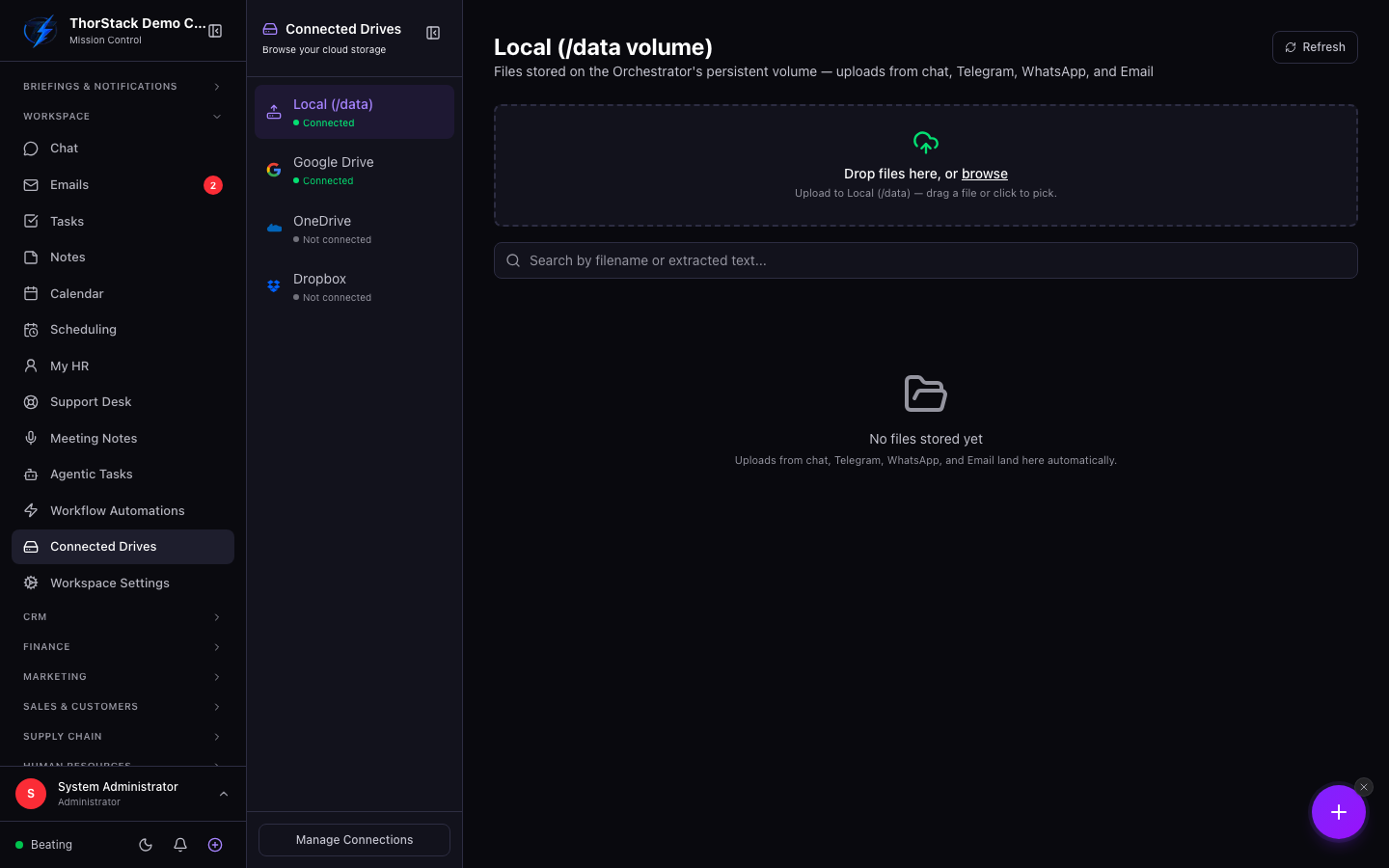 The drive browser
Key concepts
- Full-text search — search matches file content (text extracted from PDFs and documents), not just filenames.
- Authenticated downloads — files are never exposed on public URLs; every download and preview goes through your login.
- Auto-ingestion — attachments from connected channels land in the local drive automatically, no manual filing.
Everyday moves
- Drag files onto the upload zone (or click Add files).
- Search by name or content; click a row for the detail drawer with an inline preview (images, PDFs, text) and download button.
- Connect more providers under Workspace Settings → Connections.
Files feed everything else
Drive files show up as attachable context in Chat, as attachments in the email composer, and as sources for the fetch_source step in automations.
Settings & permissions
Any signed-in teammate can browse and upload to the local drive; provider drives follow the connecting user's own access. Sync tuning lives with the other connection settings.